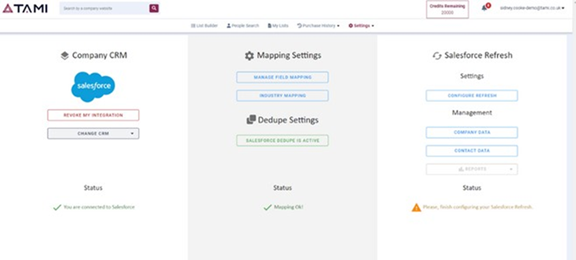
- Go to Settings in your TAMI AI account.
- Select the Salesforce integration.
- Accept the agreement.
- Log in to Salesforce.
- Go to Manage Field Mapping.
- Choose whether to export as a Lead or as an Account and Contact.
- Complete the mapping between TAMI AI and Salesforce.
- Go to Industry Mapping.
- Map each TAMI AI industry to the matching Salesforce industry.
- You are now connected to Salesforce and can export.
Salesforce only needs to be set up once, from an app admin's account. The setup then applies to every other user on that account.
Configure your export settingsOnce connected, you can choose export preferences and limit which objects can be exported.
1. From the CRM Setup page for the integration, select Manage Field Mapping.
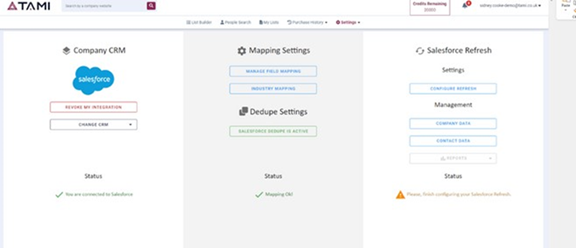
2. Choose the export type.
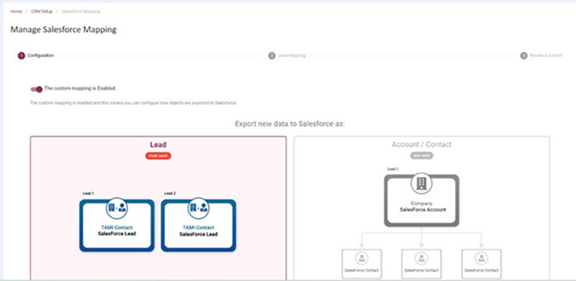
3. Select each data type your users should be able to export to Salesforce.
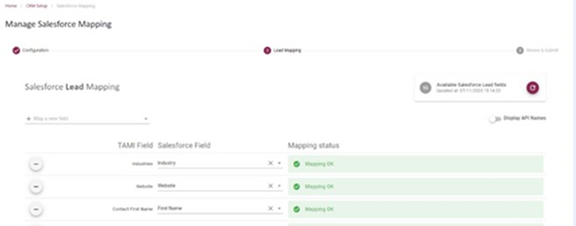
4. Click Continue to Review & Submit.
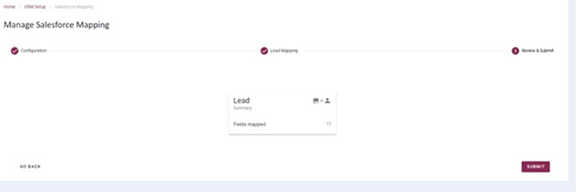
5. Click Submit to save.
Industry mapping1. Select Industry Mapping.
2. Map each industry and sub-industry to the matching industry in Salesforce.
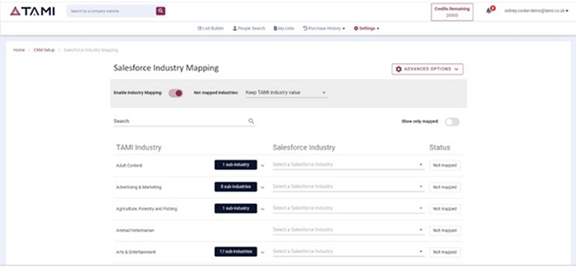
3. Click Save.
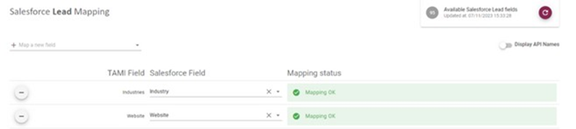
Add or remove fieldsClick Add Field at the bottom of the field list. Each field you add must be mapped to a field in Salesforce.
1. Go to CRM Setup and select Activate Salesforce Dedupe.
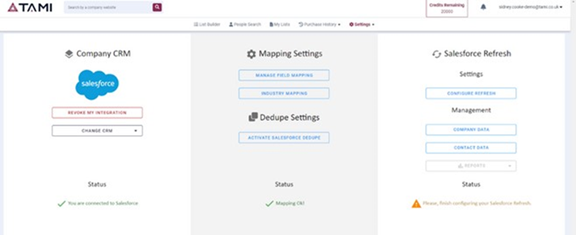
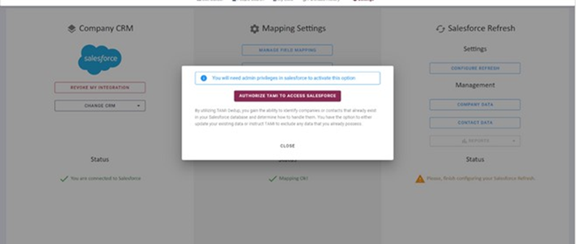
2. Authorise access.
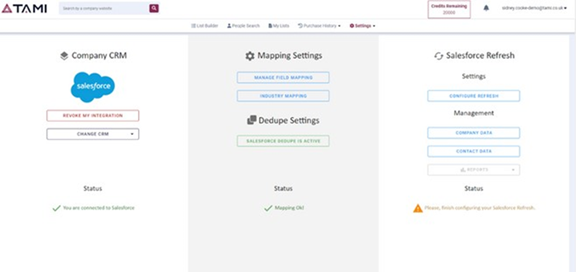
3. Dedupe is now active.
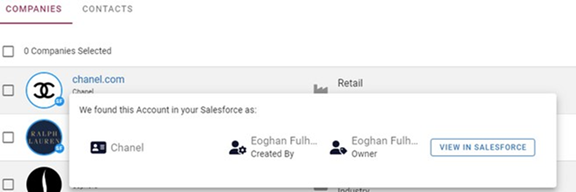
4. Leads, accounts and contacts already in your Salesforce show a blue ring marked SF, as below.
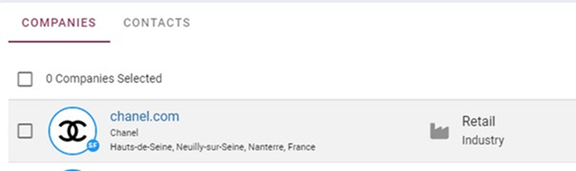
5. You can also see who owns each record and who created it.